

Submit Change to NFIP Policy: Difference between revisions
| (67 intermediate revisions by the same user not shown) | |||
| Line 97: | Line 97: | ||
|No | |No | ||
|Yes | |Yes | ||
| | |Situational | ||
|[[NFIP Policy Changes#cat-chg-6|Coverage Decreases]] | |[[NFIP Policy Changes#cat-chg-6|Coverage Decreases]] | ||
|- | |- | ||
| Line 108: | Line 108: | ||
|- | |- | ||
|[[#Elevation Certificate|Elevation Certificate]] | |[[#Elevation Certificate|Elevation Certificate]] | ||
| | |Upload | ||
|No | |No | ||
|Yes | |Yes | ||
| Line 488: | Line 488: | ||
|No | |No | ||
|Yes | |Yes | ||
| | |Situational | ||
|[[NFIP Policy Changes#cat-chg-6|Coverage Decreases]] | |[[NFIP Policy Changes#cat-chg-6|Coverage Decreases]] | ||
|} | |} | ||
| Line 505: | Line 505: | ||
{{Docs-req|1='''Building coverage''': proof the building is over-insured, either through error or removal. [https://www.fema.gov/sites/default/files/documents/fema_nfip_flood-insurance-manual_042024.pdf#page=145] }} | {{Docs-req|1='''Building coverage''': proof the building is over-insured, either through error or removal. [https://www.fema.gov/sites/default/files/documents/fema_nfip_flood-insurance-manual_042024.pdf#page=145] }} | ||
{{Docs-req|1='''Duplicate RCBAP coverage''': copy of the RCBAP declarations page. }} | |||
{{Docs-req|1='''Contents coverage''': proof the property was sold or removed. [https://www.fema.gov/sites/default/files/documents/fema_nfip_flood-insurance-manual_042024.pdf#page=145] }} | {{Docs-req|1='''Contents coverage''': proof the property was sold or removed. [https://www.fema.gov/sites/default/files/documents/fema_nfip_flood-insurance-manual_042024.pdf#page=145] }} | ||
{{Docs-req|1='''Policyholder's signature''' [https://www.fema.gov/sites/default/files/documents/fema_nfip_flood-insurance-manual_042024.pdf#page=141] }} | {{Docs-req|1='''Policyholder's signature''' [https://www.fema.gov/sites/default/files/documents/fema_nfip_flood-insurance-manual_042024.pdf#page=141] }} | ||
{{Attention|1=If due to error, | {{Attention|1=If due to error, the decrease is effective at inception. <br>If due to damage or removal, it is effective '''the day after''' the event date. [https://www.fema.gov/sites/default/files/documents/fema_nfip_flood-insurance-manual_042024.pdf#page=145] <br>If due to duplicate RCBAP building coverage, it is effective the date the RCBAP coverage started. [https://www.fema.gov/sites/default/files/documents/fema_nfip_flood-insurance-manual_042024.pdf#page=146]}} | ||
{{box-summ | {{box-summ | ||
|color = blue | |color = blue | ||
| Line 546: | Line 547: | ||
}} | }} | ||
<small>'''''[[#Policy Changes List|▲ Return to the Policy Changes List]]'''''</small> | <small>'''''[[#Policy Changes List|▲ Return to the Policy Changes List]]'''''</small> | ||
</div> | </div><h3 class="sol-box-top">Elevation Certificate </h3> | ||
<h3 class="sol-box-top">Elevation Certificate </h3> | |||
{| class="wikitable sol-box-top" style="width:100%;" | {| class="wikitable sol-box-top" style="width:100%;" | ||
! Functions | ! Functions | ||
| Line 557: | Line 555: | ||
! NFIP Category | ! NFIP Category | ||
|- style="text-align:center" | |- style="text-align:center" | ||
| | |Upload | ||
|No | |No | ||
|Yes | |Yes | ||
| Line 563: | Line 561: | ||
|[[NFIP Policy Changes#cat-chg-4|Rating Adjustment]] | |[[NFIP Policy Changes#cat-chg-4|Rating Adjustment]] | ||
|} | |} | ||
<div class="sol-box">''Elevation | <div class="sol-box">'''''Upload:''' there is no option to edit the Elevation Certificate directly; requests must be submitted by upload.'' | ||
{{feedback | {{feedback | ||
|class = procedure | |class = procedure | ||
|title = '''Procedure:''' | |title = '''Procedure:''' | ||
|category = | |category = | ||
|attn = '''[[ | |attn = '''[[Policy Documents#How to Upload|Upload Document]]''' | ||
}} | }} | ||
'''Adding''' an Elevation Certificate | '''Adding''' an Elevation Certificate means to include an EC to the policy when there was not one previously. | ||
'''Editing''' an Elevation Certificate | '''Editing''' an Elevation Certificate means to adjust any information shown on the policy about an EC, including elevations, heights, building diagram, document date, or building construction status. | ||
{{Docs-req|[[Elevation Certificate]] (including photos, when applicable)}} | {{Docs-req|[[Elevation Certificate]] (including photos, when applicable)}} | ||
{{Attention| | {{Attention|The [[Building Diagram Number]] from the EC must correspond to the foundation on the policy.}} | ||
{{box-summ | {{box-summ | ||
|color = blue | |color = blue | ||
|title = Example | |title = Example | ||
|text = | |text = A building under construction has finally been completed; it had an existing NFIP policy that used an Elevation Certificate. The policyholder emails the agent a copy of a new EC showing the finished construction. The agent uploads the new EC and has the policy information updated. | ||
}} | }} | ||
<small>'''''[[#Policy Changes List|▲ Return to the Policy Changes List]]'''''</small> | <small>'''''[[#Policy Changes List|▲ Return to the Policy Changes List]]'''''</small> | ||
</div> | </div> | ||
<h3 class="sol-box-top">Structural Variables </h3> | <h3 class="sol-box-top">Structural Variables </h3> | ||
{| class="wikitable sol-box-top" style="width:100%;" | {| class="wikitable sol-box-top" style="width:100%;" | ||
| Line 599: | Line 596: | ||
|[[NFIP Policy Changes#cat-chg-4|Policy Change]] | |[[NFIP Policy Changes#cat-chg-4|Policy Change]] | ||
|} | |} | ||
<div class="sol-box"> | <div class="sol-box">'''''Edit Only:''''' ''Structural Variables are essential parts of an NFIP policy, so they can only be edited in Equinox.'' | ||
{{feedback | |||
{{attention| | |class = procedure | ||
|title = '''Procedure:''' | |||
|category = | |||
|attn = '''[[Submit Change to Structural Variable]]''' | |||
}} | |||
Structural Variables are found in the '''Risk Characteristics''' section of the [[Policy Record]]. <br> | |||
These fields describe the physical details of the building, which can be changed over time. They should be accurately represented on an NFIP policy; they can be corrected if they are not. | |||
{{Docs-req|'''Changes:''' proof of a change to the building, such as a photograph.}} | |||
{{Docs-req|'''Corrections:''' an agent statement that the item was incorrect on the original application.}} | |||
{{attention|'''Changes:''' the effective date is '''the date the change occurred''' (the event date). <br>'''Corrections:''' the effective date is '''the policy inception date'''.}} | |||
The collapsed table below gives more details about each Structural Variable. | |||
{{table-structural-variables}} | |||
<small>'''''[[#Policy Changes List|▲ Return to the Policy Changes List]]'''''</small> | <small>'''''[[#Policy Changes List|▲ Return to the Policy Changes List]]'''''</small> | ||
</div> | </div> | ||
<h3 class="sol-box-top">Property Address </h3> | <h3 class="sol-box-top">Property Address </h3> | ||
{| class="wikitable sol-box-top" style="width:100%;" | {| class="wikitable sol-box-top" style="width:100%;" | ||
| Line 668: | Line 622: | ||
! NFIP Category | ! NFIP Category | ||
|- style="text-align:center" | |- style="text-align:center" | ||
| | |Upload | ||
|No | |No | ||
|Yes | |Yes | ||
| Line 674: | Line 628: | ||
|[[NFIP Policy Changes#cat-chg-7|Property Address]] | |[[NFIP Policy Changes#cat-chg-7|Property Address]] | ||
|} | |} | ||
<div class="sol-box">''''' | <div class="sol-box">'''''Upload:''' there is no option to edit the Property Address directly; requests must be submitted by upload.'' | ||
{{feedback | {{feedback | ||
|class = procedure | |class = procedure | ||
|title = '''Procedure:''' | |title = '''Procedure:''' | ||
|category = | |category = | ||
|attn = '''[[ | |attn = '''[[Policy Documents#How to Upload|Upload Document]]''' | ||
}} | }} | ||
'''Editing''' a property address | '''Editing''' a property address is due to one of two reasons: | ||
{{Docs-req| | * '''[[wikipedia:Enhanced_911|Emergency Address]] update''' (911 change): if the geolocation is not affected, the cost of the policy will not change. | ||
{{Attention| | * '''Incorrect Geolocation:''' since the property address is used to determine the flood insurance rate, this may result in a change to the annual premium. It may also require new community documentation. A map exhibit will help with this correction. | ||
{{Docs-req|A document that identifies the property address change, why it occurred, and what the correct address should be.}} | |||
{{Attention|'''911 Change:''' effective on the date of the change. <br>'''Geolocation Correction:''' effective at inception (may require cancel rewrite).}} | |||
{{box-summ | {{box-summ | ||
|color = blue | |color = blue | ||
|title = Example | |title = Example | ||
|text = | |text = The agent accidentally entered the address as "123 Main St" on the application when it should have been "1234 Main St". The agent created a document showing the correct address with a map screenshot and uploaded it to the policy. | ||
}} | }} | ||
<small>'''''[[#Policy Changes List|▲ Return to the Policy Changes List]]'''''</small> | <small>'''''[[#Policy Changes List|▲ Return to the Policy Changes List]]'''''</small> | ||
</div> | </div> | ||
<h3 class="sol-box-top">Effective Date </h3> | <h3 class="sol-box-top">Effective Date </h3> | ||
{| class="wikitable sol-box-top" style="width:100%;" | {| class="wikitable sol-box-top" style="width:100%;" | ||
| Line 706: | Line 661: | ||
|Yes | |Yes | ||
|Inception | |Inception | ||
|Cancel Rewrite | |[[NFIP Policy Changes#cat-chg-9|Cancel Rewrite]] | ||
|} | |} | ||
<div class="sol-box">'' | <div class="sol-box">'''''Edit Only:''''' ''since the Effective Date is an essential policy detail, it cannot be added or deleted.'' | ||
{{feedback | {{feedback | ||
|class = procedure | |class = procedure | ||
|title = '''Procedure:''' | |title = '''Procedure:''' | ||
|category = | |category = | ||
|attn = '''[[Submit Change to | |attn = '''[[Submit Change to Effective Date]]''' | ||
}} | }} | ||
''' | '''Editing''' an [[Effective Date]] requires the existing policy to be cancelled and rewritten, which will create a new policy number. | ||
''' | {{Docs-req|'''Loan Exception:''' evidence of closing, e.g. closing paperwork, settlement statement}} | ||
{{Attention|Effective Date changes cannot be used to override the correct use of a [[Waiting Period]] rule.}} | |||
{{Attention| | |||
{{box-summ | {{box-summ | ||
|color = blue | |color = blue | ||
|title = Example | |title = Example | ||
|text = A | |text = A NFIP policy was issued two days prior to a loan closing. The loan closing got pushed forward to the following week. The agent submitted a request to change the date and uploaded a copy of the final settlement statement. | ||
}} | }} | ||
<small>'''''[[#Policy Changes List|▲ Return to the Policy Changes List]]'''''</small> | <small>'''''[[#Policy Changes List|▲ Return to the Policy Changes List]]'''''</small> | ||
</div> | </div> | ||
<h3 class="sol-box-top">Provisional Rates </h3> | <h3 class="sol-box-top">Provisional Rates </h3> | ||
{| class="wikitable sol-box-top" style="width:100%;" | {| class="wikitable sol-box-top" style="width:100%;" | ||
| Line 738: | Line 690: | ||
! NFIP Category | ! NFIP Category | ||
|- style="text-align:center" | |- style="text-align:center" | ||
| | |Upload | ||
|No | |No | ||
|No | |No | ||
| Line 744: | Line 696: | ||
|[[NFIP Policy Changes#cat-chg-8|Rate Category Change]] | |[[NFIP Policy Changes#cat-chg-8|Rate Category Change]] | ||
|} | |} | ||
<div class="sol-box">NFIP policies issued with '''Provisional Rates''' [https://www.fema.gov/sites/default/files/documents/fema_nfip_flood-insurance-manual_042024.pdf#page=137] cannot be renewed. So provisionally-rated policies must be endorsed prior to the policy expiration date. Claims will also not be paid on policies with provisional rates; therefore, these policies must be endorsed before a claim payment is issued. | <div class="sol-box">'''''Upload:''' there is no option to edit Provisional Rates directly; requests must be submitted by upload.'' | ||
{{feedback | |||
|class = procedure | |||
|title = '''Procedure:''' | |||
|category = | |||
|attn = '''[[Policy Documents#How to Upload|Upload Document]]''' | |||
}} | |||
NFIP policies issued with '''Provisional Rates''' [https://www.fema.gov/sites/default/files/documents/fema_nfip_flood-insurance-manual_042024.pdf#page=137] cannot be renewed. So provisionally-rated policies must be endorsed prior to the policy expiration date. Claims will also not be paid on policies with provisional rates; therefore, these policies must be endorsed before a claim payment is issued. | |||
An agent can issue New Business or a Renewal term with Provisional rates; however, the NFIP strongly suggests that the insurer endorse the policy within 60 days of issuance. Additional premium may be required as part of this Rating Category Change. | An agent can issue New Business or a Renewal term with Provisional rates; however, the NFIP strongly suggests that the insurer endorse the policy within 60 days of issuance. Additional premium may be required as part of this Rating Category Change. | ||
<small>'''''[[#Policy Changes List|▲ Return to the Policy Changes List]]'''''</small> | {{Attention|Although the insurer will attempt to reinstate actuarial rates as soon as possible, agents can also request a rate category change from Provisional rates.}} | ||
{{box-summ | |||
|color = blue | |||
|title = Example | |||
|text = A new NFIP application was created while the PIVOT rating engine was offline for maintenance; this resulted in Provisional rating being applied. Two weeks after the policy was issued, the agent uploaded a request to adjust the Provisional rates. | |||
}}<small>'''''[[#Policy Changes List|▲ Return to the Policy Changes List]]'''''</small> | |||
</div> | </div> | ||
== Policy Change Workflow == | == Policy Change Workflow == | ||
[[NFIP Policy Changes]] range from the simple to the complex. They may require additional signatures, extra documents, and more premium payments. They may also result in premium refunds, which can span more than one policy term (known as '''prior term refunds'''). | |||
The image shown here illustrates a general approach to submitting a change for a NFIP policy through the Equinox platform. This flowchart contains clickable elements that will open in a new browser window. | |||
<imagemap> | |||
File:Img-vector-change-Z.png|500px|thumb|left|General process of an NFIP policy change | |||
rect 14 15 188 102 [[#Access the Policy Record]] | |||
rect 14 137 189 225 [[#Policy Section]] | |||
rect 14 260 189 347 [[#Add, Edit, or Delete]] | |||
rect 14 382 189 470 [[#Choose the Effective Date]] | |||
poly 302 59 389 15 475 59 390 102 [[#Did It Auto-issue?]] | |||
rect 301 137 476 226 [[#Underwriting Review]] | |||
rect 301 382 477 471 [[#Upload Documents]] | |||
poly 527 180 613 139 701 182 613 225 [[#Did It Change Premium?]] | |||
rect 525 382 701 470 [[#Underwriting Requested Documents]] | |||
rect 748 137 926 225 [[#Premium Payment]] | |||
poly 751 303 837 261 924 304 837 349 [[#Were the Documents Valid?]] | |||
desc bottom-right | desc bottom-right | ||
</imagemap> | </imagemap> | ||
=== Access the Policy Record === | |||
All policy changes start from the [[Policy Record]] | |||
=== Go to the Policy Section === | |||
Unless the policy change is created by document upload, go to the corresponding Policy Section. <br> | |||
The Policy Actions menu gives a list of shortcuts to sections. | |||
{{clear}} | {{clear}} | ||
=== Add, Edit, or Delete === | |||
The section will contain clickable icons or buttons to start the policy change. | |||
* To add a new policy detail, click the Plus (+) button | |||
* To edit a policy detail, click the Pencil icon | |||
* To delete a policy detail, click the Trash can icon | |||
Make the changes as needed, then click the "Save" button. | |||
=== Choose the Effective Date === | |||
All policy changes require an effective date selection from the top of the page. <br> | |||
The effective date chosen must follow appropriate NFIP rules. | |||
=== Upload Documents === | |||
If documents are required or requested from Underwriting, then they can be uploaded after the submission. | |||
Policy changes can also be requested directly from Underwriting by uploading a document to the policy. | |||
=== Did It Auto-issue? === | |||
This condition asks if the policy change was auto-issued. | |||
* If so, a new declarations page should be available in the Policy Documents list. | |||
* If not, it will be reviewed by Underwriting. | |||
=== Underwriting Review === | |||
Underwriters must process some policy changes; they must process all policy changes with attached documents. | |||
=== Did It Change Premium? === | |||
This condition asks if the policy change requires additional premium or a refund. | |||
* If additional premium is required, then the agent can submit it after the policy change is created. | |||
* If a refund is required, then underwriting must issue it. | |||
* If the premium balances, then it may auto-issue. | |||
=== Premium Payment === | |||
A premium payment or refund can be made to balance the premium. | |||
=== Were the Documents Valid? === | |||
This is an underwriting question. | |||
* If the documents are valid, then the underwriter will issue the policy. | |||
* If the documents are not valid, then the underwriter will request them from the agent. | |||
=== Underwriting Requested Documents === | |||
A policy notification will be sent from underwriting requesting documents. <br> | |||
The policy will be flagged with a '''Pending Documents''' notice. | |||
<small>'''''[[#Policy Changes List|▲ Return to the Policy Changes List]]'''''</small> | <small>'''''[[#Policy Changes List|▲ Return to the Policy Changes List]]'''''</small> | ||
{{line-nfip-endorse}} | {{line-nfip-endorse}} | ||
Latest revision as of 08:24, 12 March 2025


This page serves as a directory for various NFIP Policy Changes agents can request through Equinox. Each change type includes details about the process, effective dates, and required documentation. Individual procedures are linked for more specific instructions.
|
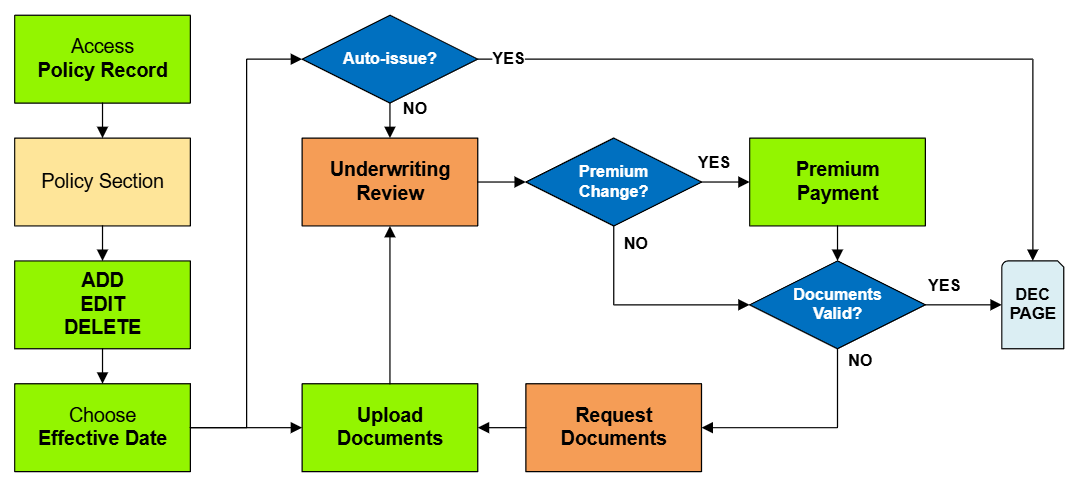
See the Policy Change Workflow below to interpret this diagram.
Policy Changes List
The table below lists the most common NFIP Policy Changes submitted by agents.
- The links in the Policy Section column show more details about each Policy Change lower on the page.
- The links in the Functions column connect to specific procedural instruction pages.
- The links in the NFIP Category column identify the level of complexity for each process.
Policyholder Contact Details
| Functions | Auto-issue | Documents | Effective Date | NFIP Category |
|---|---|---|---|---|
| Edit | Yes | No | Request | Administrative |
Edit Only: since the Policyholder Contact Details are an essential policy detail, they cannot be added or deleted.
Procedure: Submit Change to NFIP Insured
Accurate contact information ensures that policyholders receive timely communications regarding their coverage, billing, and claims. Agents can update details such as mailing addresses, phone numbers, and email addresses directly in the system without additional documentation. These changes typically take effect upon request and are processed automatically.
| Example |
A policyholder wishes to receive their mail at a post office box and provides their updated mailing address. The agent edits the contact details in the system to reflect this change.
|
Renewal Billing Instructions
| Functions | Auto-issue | Documents | Effective Date | NFIP Category |
|---|---|---|---|---|
| Edit | Yes | No | Request | Administrative |
Procedure: Submit Change to NFIP Billing Instructions
Proper billing instructions are crucial for renewal payments and uninterrupted coverage. Agents can designate insureds, mortgagees, or additional interests as needed. These updates are administrative and do not require additional documentation, taking effect upon request.
| Example |
A policyholder wishes to change their premium payment method from direct billing to mortgage escrow. The agent updates the billing instructions accordingly.
|
Mortgagee Clause
| Functions | Auto-issue | Documents | Effective Date | NFIP Category |
|---|---|---|---|---|
| Add, Edit, Delete | Yes | No | Request | Policy Interests |
Procedure: Submit Change to Mortgagee Clause
The mortgagee clause specifies a lender's interest in the insured property. Agents can add, edit, or remove mortgagee information to ensure compliance with loan requirements. These changes are processed automatically, so the lender details should be accurate to prevent issues.
| Example |
A policyholder refinances their mortgage with a new lender. The agent updates the policy to reflect the new mortgagee information.
|
Insured Name Correction
| Functions | Auto-issue | Documents | Effective Date | NFIP Category |
|---|---|---|---|---|
| Edit | Yes | No | Inception | Administrative |
Procedure: Submit Change to NFIP Insured
Minor errors in the insured's name, such as misspellings, can be corrected. These corrections are administrative, do not require documentation, and are effective from the policy's inception date.
| Example |
The insured's name is listed as "Jon Smith" instead of "John Smith." The agent corrects the spelling in the system.
|
Insured Name Update
| Functions | Auto-issue | Documents | Effective Date | NFIP Category |
|---|---|---|---|---|
| Edit | No | Yes | Event | Policy Change |
Procedure: Submit Change to NFIP Insured
Significant name changes due to events like marriage or legal name changes require updates to the policy. Agents must obtain legal documentation (e.g., marriage certificate, court order) to process these changes. The updates are not auto-issued and become effective based on the event date.
Required Documentation: a signed request from the insured or legal document showing change to insured name
| Example |
After legally changing their name, a policyholder provides a court order to the agent, who then updates the policy accordingly.
|
Additional Insured
| Functions | Auto-issue | Documents | Effective Date | NFIP Category |
|---|---|---|---|---|
| Add, Edit, Delete | Yes | When Deleting | Event or Request | Policy Interests |
Procedure: Submit Change to NFIP Insured
Adding an additional insured, such as a co-owner or entity with a financial interest in the property, is processed automatically and can take effect based on the date the additional insured gained insurable interest in the property or upon the request date.
Editing an additional insured is allowed for corrections only; they must not change insurable interest from one party to another.
Deleting an additional insured requires their signature or proof they no longer have insurable interest.
Required Documentation: (Delete Only) A signed request from the insured being removed or written evidence, like a deed.
| Example |
A property co-owner is added to the policy as an additional insured after providing proof of ownership.
|
Co-insured
| Functions | Auto-issue | Documents | Effective Date | NFIP Category |
|---|---|---|---|---|
| Add, Edit, Delete | Yes | When Deleting | Event or Request | Policy Interests |
Procedure: Submit Change to NFIP Insured
Adding a co-insured is processed automatically and can take effect based on the date the additional insured gained insurable interest in the property or upon the request date.
Editing a co-insured is allowed for corrections only; they must not change insurable interest from one party to another.
Deleting a co-insured requires their signature or proof they no longer have insurable interest.
Required Documentation: (Delete Only) A signed request from the insured being removed or written evidence, like a deed.
| Example |
A spouse is added as a co-insured after the policy is issued.
|
Policy Assignment
| Functions | Auto-issue | Documents | Effective Date | NFIP Category |
|---|---|---|---|---|
| Add, Edit, Delete | No | Yes | Event | Policy Interests |
Procedure: Submit Policy Assignment
Transferring a NFIP policy from one entity to another, often due to property sales, is known as Policy Assignment. These changes are not auto-issued and become effective on the date the property is deeded, i.e. the event date.
Required Documentation: A Policy Assignment Form must be signed by all parties on or before the closing date.
| Example |
Upon selling a property, the existing flood insurance policy is assigned from Joe, the seller, to Betty, the buyer.
|
Coverage Increase
| Functions | Auto-issue | Documents | Effective Date | NFIP Category |
|---|---|---|---|---|
| Edit | No | No | Calculated | Coverage Increases |
Procedure: Submit Change to NFIP Coverage
Editing a coverage limit to increase it means to make the building coverage or contents coverage higher than it is currently. Deductible changes can be included but they must be specified and follow applicable rules.
When coverage is increased from zero, a deductible must be chosen.
Required Documentation: Premium Payment
| Example |
A policyholder wants to take out a second mortgage on their home, but the lender requires higher building coverage on the policy. The agent submitted the request and had the insured provide the additional premium. After the declarations page was issued with the increased limit, the policyholder presented it to the lender, who then approved the loan.
|
Deductible Decrease
| Functions | Auto-issue | Documents | Effective Date | NFIP Category |
|---|---|---|---|---|
| Edit | No | Yes | Calculated | Coverage Increases |
Procedure: Submit Change to NFIP Coverage
Editing a deductible to decrease it means to make the building deductible or contents deductible lower than it is currently. Coverage changes can be included but they must be specified and follow applicable rules.
When coverage is reduced to zero, the corresponding deductible must be set to zero.
Required Documentation: A lender's letter that requires a lower deductible [1]
Required Documentation: Premium Payment
| Example |
In a recent audit, the lender on a policy has discovered that the current deductible is too high. The lender sends a letter to the policyholder, who then has the agent submit a request to decrease the deductible. The policyholder pays the additional premium and the lender receives a new declarations page showing the lower deductible amount.
|
Coverage Decrease
| Functions | Auto-issue | Documents | Effective Date | NFIP Category |
|---|---|---|---|---|
| Edit | No | Yes | Situational | Coverage Decreases |
Procedure: Submit Change to NFIP Coverage
Editing a coverage limit to decrease it means to make the building coverage or contents coverage lower than it is currently. Deductible changes can be included but they must be specified and follow applicable rules.
When coverage is reduced to zero, the corresponding deductible must be set to zero.
Coverage decreases can be made on upcoming renewals without the requirements needed for policy changes. [2]
Required Documentation: Building coverage: proof the building is over-insured, either through error or removal. [3]
Required Documentation: Duplicate RCBAP coverage: copy of the RCBAP declarations page.
Required Documentation: Contents coverage: proof the property was sold or removed. [4]
Required Documentation: Policyholder's signature [5]
If due to damage or removal, it is effective the day after the event date. [6]
If due to duplicate RCBAP building coverage, it is effective the date the RCBAP coverage started. [7]
| Example |
A building with an NFIP policy sustained damage from a fire. The property owners decided not to restore the building to its former size; instead, they had the burnt portion removed. They signed a request to decrease the NFIP policy to the new BRCV amount; it became effective the day after the fire.
|
Deductible Increase
| Functions | Auto-issue | Documents | Effective Date | NFIP Category |
|---|---|---|---|---|
| Edit | No | No | Request | Coverage Decreases |
Procedure: Submit Change to NFIP Coverage
Editing a deductible to increase it means to make the building deductible or contents deductible higher than it is currently. Coverage changes can be included but they must be specified and follow applicable rules.
When coverage is increased from zero, a deductible must be chosen.
| Example |
A policyholder feels that their property is adequately protected from small scale flooding events, so they decide to add more money to their budget by increasing their deductible. They sign a request for the agent, who submits it. The policy issues a new declarations page showing the higher deductible effective on the day of the request.
|
Elevation Certificate
| Functions | Auto-issue | Documents | Effective Date | NFIP Category |
|---|---|---|---|---|
| Upload | No | Yes | Event or Inception | Rating Adjustment |
Procedure: Upload Document
Adding an Elevation Certificate means to include an EC to the policy when there was not one previously.
Editing an Elevation Certificate means to adjust any information shown on the policy about an EC, including elevations, heights, building diagram, document date, or building construction status.
Required Documentation: Elevation Certificate (including photos, when applicable)
| Example |
A building under construction has finally been completed; it had an existing NFIP policy that used an Elevation Certificate. The policyholder emails the agent a copy of a new EC showing the finished construction. The agent uploads the new EC and has the policy information updated.
|
Structural Variables
| Functions | Auto-issue | Documents | Effective Date | NFIP Category |
|---|---|---|---|---|
| Edit | No | Yes | Event or Inception | Policy Change |
Procedure: Submit Change to Structural Variable
Structural Variables are found in the Risk Characteristics section of the Policy Record.
These fields describe the physical details of the building, which can be changed over time. They should be accurately represented on an NFIP policy; they can be corrected if they are not.
Required Documentation: Changes: proof of a change to the building, such as a photograph.
Required Documentation: Corrections: an agent statement that the item was incorrect on the original application.
Corrections: the effective date is the policy inception date.
The collapsed table below gives more details about each Structural Variable.
| Structural Variable | FIM | Details |
|---|---|---|
| Occupancy | FIM | The building's intended use chosen from one of nine options. Determines the NFIP Policy Form and maximum coverage limits. |
| Building Description | FIM | Used to specify more detail about the building's intended use or to differentiate it from other buildings at the same location. |
| Primary Residence | FIM | Where the insured, their spouse, or a beneficiary of an insured trust resides more than 50% of the year. Determines the HFIAA surcharge amount. |
| Foundation Type | FIM | The portion of the building that supports all other structural components, chosen from six different types. |
| Foundation Description | FIM | Additional defining characteristics about the foundation |
| Number of Floors | FIM | The number of living floors above the foundation. Enclosures, crawlspaces, and basements are not considered a floor. |
| Number of Units | FIM | The number of units in a multi-unit building, including residential and non-residential units. |
| Floor of Unit | FIM | (Unit occupancy only) The floor of the building where the unit is located, even if only a single story building. |
| Building Over Water | FIM | Describes whether the building is either partially, fully, or not over water. |
| Detached Structures | FIM | Identifies the number of detached structures, not including the main building |
| Number of Elevators | FIM | The total number of elevators in the building. Does not include dumbwaiters or stair lifts. |
Property Address
| Functions | Auto-issue | Documents | Effective Date | NFIP Category |
|---|---|---|---|---|
| Upload | No | Yes | Event or Inception | Property Address |
Procedure: Upload Document
Editing a property address is due to one of two reasons:
- Emergency Address update (911 change): if the geolocation is not affected, the cost of the policy will not change.
- Incorrect Geolocation: since the property address is used to determine the flood insurance rate, this may result in a change to the annual premium. It may also require new community documentation. A map exhibit will help with this correction.
Required Documentation: A document that identifies the property address change, why it occurred, and what the correct address should be.
Geolocation Correction: effective at inception (may require cancel rewrite).
| Example |
The agent accidentally entered the address as "123 Main St" on the application when it should have been "1234 Main St". The agent created a document showing the correct address with a map screenshot and uploaded it to the policy.
|
Effective Date
| Functions | Auto-issue | Documents | Effective Date | NFIP Category |
|---|---|---|---|---|
| Edit | No | Yes | Inception | Cancel Rewrite |
Procedure: Submit Change to Effective Date
Editing an Effective Date requires the existing policy to be cancelled and rewritten, which will create a new policy number.
Required Documentation: Loan Exception: evidence of closing, e.g. closing paperwork, settlement statement
| Example |
A NFIP policy was issued two days prior to a loan closing. The loan closing got pushed forward to the following week. The agent submitted a request to change the date and uploaded a copy of the final settlement statement.
|
Provisional Rates
| Functions | Auto-issue | Documents | Effective Date | NFIP Category |
|---|---|---|---|---|
| Upload | No | No | Inception | Rate Category Change |
Procedure: Upload Document
NFIP policies issued with Provisional Rates [8] cannot be renewed. So provisionally-rated policies must be endorsed prior to the policy expiration date. Claims will also not be paid on policies with provisional rates; therefore, these policies must be endorsed before a claim payment is issued.
An agent can issue New Business or a Renewal term with Provisional rates; however, the NFIP strongly suggests that the insurer endorse the policy within 60 days of issuance. Additional premium may be required as part of this Rating Category Change.
| Example |
A new NFIP application was created while the PIVOT rating engine was offline for maintenance; this resulted in Provisional rating being applied. Two weeks after the policy was issued, the agent uploaded a request to adjust the Provisional rates.
|
Policy Change Workflow
NFIP Policy Changes range from the simple to the complex. They may require additional signatures, extra documents, and more premium payments. They may also result in premium refunds, which can span more than one policy term (known as prior term refunds).
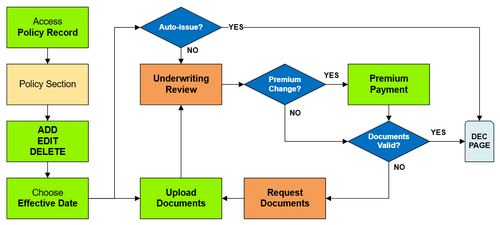
The image shown here illustrates a general approach to submitting a change for a NFIP policy through the Equinox platform. This flowchart contains clickable elements that will open in a new browser window.
Access the Policy Record
All policy changes start from the Policy Record
Go to the Policy Section
Unless the policy change is created by document upload, go to the corresponding Policy Section.
The Policy Actions menu gives a list of shortcuts to sections.
Add, Edit, or Delete
The section will contain clickable icons or buttons to start the policy change.
- To add a new policy detail, click the Plus (+) button
- To edit a policy detail, click the Pencil icon
- To delete a policy detail, click the Trash can icon
Make the changes as needed, then click the "Save" button.
Choose the Effective Date
All policy changes require an effective date selection from the top of the page.
The effective date chosen must follow appropriate NFIP rules.
Upload Documents
If documents are required or requested from Underwriting, then they can be uploaded after the submission.
Policy changes can also be requested directly from Underwriting by uploading a document to the policy.
Did It Auto-issue?
This condition asks if the policy change was auto-issued.
- If so, a new declarations page should be available in the Policy Documents list.
- If not, it will be reviewed by Underwriting.
Underwriting Review
Underwriters must process some policy changes; they must process all policy changes with attached documents.
Did It Change Premium?
This condition asks if the policy change requires additional premium or a refund.
- If additional premium is required, then the agent can submit it after the policy change is created.
- If a refund is required, then underwriting must issue it.
- If the premium balances, then it may auto-issue.
Premium Payment
A premium payment or refund can be made to balance the premium.
Were the Documents Valid?
This is an underwriting question.
- If the documents are valid, then the underwriter will issue the policy.
- If the documents are not valid, then the underwriter will request them from the agent.
Underwriting Requested Documents
A policy notification will be sent from underwriting requesting documents.
The policy will be flagged with a Pending Documents notice.
