

Policy Actions: Difference between revisions
No edit summary |
|||
| (20 intermediate revisions by the same user not shown) | |||
| Line 1: | Line 1: | ||
The Policy Actions | The Policy Actions menu on the '''[[Policy Record]]''' page provides a list of tasks agents can perform to manage policies. Each action outlines the available self-service features for insurance agents. | ||
{{img-proc-nofrm | {{img-proc-nofrm | ||
| Line 5: | Line 5: | ||
| width = | | width = | ||
}} | }} | ||
== Policy Changes == | |||
<big>Quickly navigate to specific policy sections to submit changes, such as lender clauses, coverage adjustments, or insured details.</big><br> | |||
{{Box task | |||
|image = Img-policy-actions-changes-list.png | |||
|size = 250px | |||
|caption = Quickly navigate to specific policy sections to submit changes. | |||
|text = | |||
'''Quick Steps''': | |||
* Access the '''Policy Record'''. | |||
* Find the '''Policy Actions''' menu. | |||
* Click the '''Policy Changes''' option. | |||
* Choose from the buttons in the list | |||
An agent can also manually navigate to each section to make the changes directly. | |||
== | See '''[[NFIP Policy Changes]]''' for more specific information about how to make changes to federally-back flood insurance. | ||
}} | |||
== Mail Documents == | |||
''' | {{Box task | ||
|image = Img-policy-actions-mail-docs.png | |||
|size = 300px | |||
|caption = Send policy-related documents to policyholders, lenders, or third parties. | |||
|text = <big>Send policy-related documents to policyholders, lenders, or third parties.</big><br> | |||
'''Quick Steps''': | |||
* Access the '''Policy Record'''. | |||
* Find the '''Policy Actions''' menu. | |||
* Click the '''Mail Documents''' option. | |||
* Use the built-in mailing tool to complete the action. | |||
}} | |||
== Report Claim == | |||
{{Box task | |||
|image = Img-proc-fnol-01.png | |||
|size = 300px | |||
|caption = Initiate a claim on behalf of a policyholder. | |||
|text = <big>Initiate a claim on behalf of a policyholder.</big><br> | |||
'''Quick Steps''': | |||
* Access the Policy Record. | * Access the Policy Record. | ||
* | * Find the '''Policy Actions''' menu. | ||
* | * Click the '''Report Claim''' option. | ||
Find more detailed instructions at the '''[[Report Claim]]''' page. | |||
}} | |||
== Cancel Policy == | |||
{{Box task | |||
== | |image = Img-proc-cxl-01.png | ||
|size = 300px | |||
|caption = Cancel an active policy; NFIP policies require additional documentation. | |||
|text = <big>Cancel an active policy; NFIP policies require additional documentation.</big><br> | |||
''' | '''Quick Steps''': | ||
* | * Access the '''Policy Record'''. | ||
* | * Find the '''Policy Actions''' menu. | ||
* | * Click the '''Cancel Policy''' option. | ||
Find more detailed instructions at the '''[[Submit NFIP Cancellation Request]]''' page. | |||
== | }} | ||
== Change Effective Date == | |||
{{Box task | |||
|image = Img-policy-actions-change-eff-date.png | |||
''' | |size = 300px | ||
* Access the | |caption = Request a quick update to a policy's [[Effective Dates]]. | ||
* | |text = <big>Request a quick update to a policy's [[Effective Dates]]; NFIP policies must be rewritten.</big><br> | ||
* | '''Quick Steps''': | ||
* Access the '''Policy Record'''. | |||
* Find the '''Policy Actions''' menu. | |||
* Click the '''Cancel Policy''' option. | |||
Find more detailed instructions at the '''[[NFIP Corrections]]''' page. | |||
}} | |||
''' | == Send Create Account Email == | ||
{{Box task | |||
|image = Img-policy-actions-send-email.png | |||
|size = 300px | |||
|caption = Assist policyholders in setting up their Consumer Portal accounts. | |||
== | |text = <big>Assist policyholders in setting up their '''Consumer Portal''' accounts.</big><br> | ||
'''Quick Steps''': | |||
{{ | * Access the '''Policy Record'''. | ||
| | * Find the '''Policy Actions''' menu. | ||
* Click the '''Send Create Account Email''' option. | |||
= | Find more detailed instructions at the '''[[Consumer Portal]]''' page. | ||
}} | |||
Assist policyholders in setting up their Consumer Portal accounts. | |||
''' | |||
* | |||
* | |||
[[Category:Equinox]] | [[Category:Equinox]] | ||
Latest revision as of 14:36, 6 March 2025
The Policy Actions menu on the Policy Record page provides a list of tasks agents can perform to manage policies. Each action outlines the available self-service features for insurance agents.
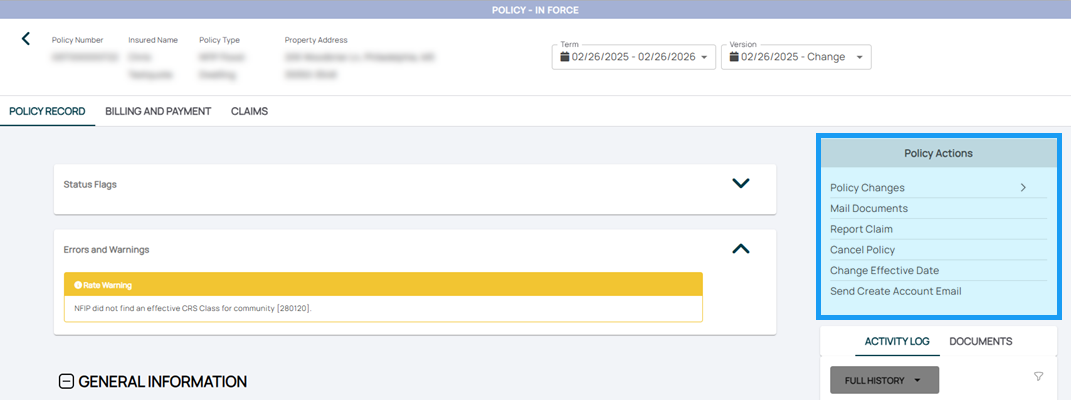
Policy Changes
Quickly navigate to specific policy sections to submit changes, such as lender clauses, coverage adjustments, or insured details.

Quick Steps:
- Access the Policy Record.
- Find the Policy Actions menu.
- Click the Policy Changes option.
- Choose from the buttons in the list
An agent can also manually navigate to each section to make the changes directly.
See NFIP Policy Changes for more specific information about how to make changes to federally-back flood insurance.Mail Documents

Send policy-related documents to policyholders, lenders, or third parties.
Quick Steps:
- Access the Policy Record.
- Find the Policy Actions menu.
- Click the Mail Documents option.
- Use the built-in mailing tool to complete the action.
Report Claim

Initiate a claim on behalf of a policyholder.
Quick Steps:
- Access the Policy Record.
- Find the Policy Actions menu.
- Click the Report Claim option.
Cancel Policy

Cancel an active policy; NFIP policies require additional documentation.
Quick Steps:
- Access the Policy Record.
- Find the Policy Actions menu.
- Click the Cancel Policy option.
Change Effective Date

Request a quick update to a policy's Effective Dates; NFIP policies must be rewritten.
Quick Steps:
- Access the Policy Record.
- Find the Policy Actions menu.
- Click the Cancel Policy option.
Send Create Account Email

Assist policyholders in setting up their Consumer Portal accounts.
Quick Steps:
- Access the Policy Record.
- Find the Policy Actions menu.
- Click the Send Create Account Email option.