

Pay NFIP New Business: Difference between revisions
No edit summary |
|||
| Line 18: | Line 18: | ||
|caption = Sign the NFIP application electronically | |caption = Sign the NFIP application electronically | ||
|text = Finish the '''[[Create NFIP Application|NFIP Application]]''' | |text = Finish the '''[[Create NFIP Application|NFIP Application]]''' | ||
* Provide a drawn or text electronic signature | * Provide a drawn or text '''electronic signature''' | ||
* Click the "'''Use This Signature'''" button | * Click the "'''Use This Signature'''" button | ||
: (it will record the signature date) | : (it will record the signature date) | ||
* Click the "Continue" button | * Click the "'''Continue'''" button | ||
: This moves the user out of the application and into the '''Payment Methods''' (see Step 2, below) | |||
}} | }} | ||
}} | }} | ||
Revision as of 12:03, 5 March 2025

This procedure explains how agents can submit premium payments for NFIP New Business applications.
|
Procedural Steps
1: Complete Application

Finish the NFIP Application
- Provide a drawn or text electronic signature
- Click the "Use This Signature" button
- (it will record the signature date)
- Click the "Continue" button
- This moves the user out of the application and into the Payment Methods (see Step 2, below)
2: Select Payment Method
* Navigate to the "Policy Actions" menu and select "Submit Payment."
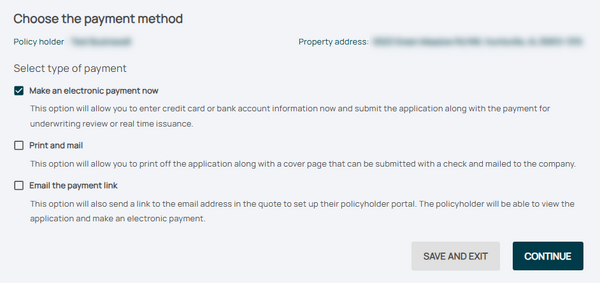
- Review the pre-filled details, including:
 * Policy number
 * Premium amount
 * Payment due date

3: Follow-up
* Provide payment information, such as:
 * Credit card details
 * Bank routing and account numbers
- Confirm the payment amount matches the premium due.
