

Premium Payment: Difference between revisions
No edit summary |
No edit summary |
||
| Line 1: | Line 1: | ||
{{eq-proc-agent | {{eq-proc-agent}} | ||
{{box- | {{box-summary | ||
|color = | |color = orange | ||
|title = | |title = | ||
|text = | |text = Payments to the NFIP are required to issue new policies or increase coverage. | ||
Payments to the NFIP are required to issue new policies or increase coverage. | |||
}} | }} | ||
{{img-proc-nofrm | |||
|file = File:Flow-eq-quote-overview.png | |||
}} | |||
{{lorem}} | |||
{{clear}} | |||
{{collapsible-section | |||
|number = 1 | |||
|title = Step 1: Find the Policy | |||
|content = | |||
Text of the information (edit this).<br> | |||
{{img-proc-frm | |||
|file = File:Img-eq-app-01.png | |||
|width = 600px | |||
}} | |||
Any other text below an image (edit image and this line). | |||
}} | |||
{{collapsible-section | |||
|number = 2 | |||
|title = Step 2: Click "Check Out" | |||
|content = | |||
Text of the information (edit this).<br> | |||
{{img-proc-frm | |||
|file = File:Img-eq-app-01.png | |||
|width = 600px | |||
}} | |||
Any other text below an image (edit image and this line). | |||
}} | |||
{{collapsible-section | |||
|number = 3 | |||
|title = Step 3: Find Billing Information | |||
|content = | |||
Text of the information (edit this).<br> | |||
{{img-proc-frm | |||
|file = File:Img-eq-app-01.png | |||
|width = 600px | |||
}} | |||
Any other text below an image (edit image and this line). | |||
}} | |||
{{collapsible-section | |||
|number = 4 | |||
|title = Step 4: Update Billing Information | |||
|content = | |||
Text of the information (edit this).<br> | |||
{{img-proc-frm | |||
|file = File:Img-eq-app-01.png | |||
|width = 600px | |||
}} | |||
Any other text below an image (edit image and this line). | |||
}} | |||
{{collapsible-section | |||
|number = 5 | |||
|title = Step 5: Complete the Update | |||
|content = | |||
Text of the information (edit this).<br> | |||
{{img-proc-frm | |||
|file = File:Img-eq-app-01.png | |||
|width = 600px | |||
}} | |||
Any other text below an image (edit image and this line). | |||
}} | |||
=== Step 1: Choose Electronic Payment === | === Step 1: Choose Electronic Payment === | ||
{{img-proc-nofrm | {{img-proc-nofrm | ||
Revision as of 13:44, 16 December 2024

Payments to the NFIP are required to issue new policies or increase coverage.
|
Lorem ipsum dolor sit amet, consectetur adipiscing elit, sed do eiusmod tempor incididunt ut labore et dolore magna aliqua. Ut enim ad minim veniam, quis nostrud exercitation ullamco laboris nisi ut aliquip ex ea commodo consequat. Duis aute irure dolor in reprehenderit in voluptate velit esse cillum dolore eu fugiat nulla pariatur. Excepteur sint occaecat cupidatat non proident, sunt in culpa qui officia deserunt mollit anim id est laborum.
Step 1: Find the Policy

Step 2: Click "Check Out"
Step 3: Find Billing Information
Step 4: Update Billing Information
Step 5: Complete the Update
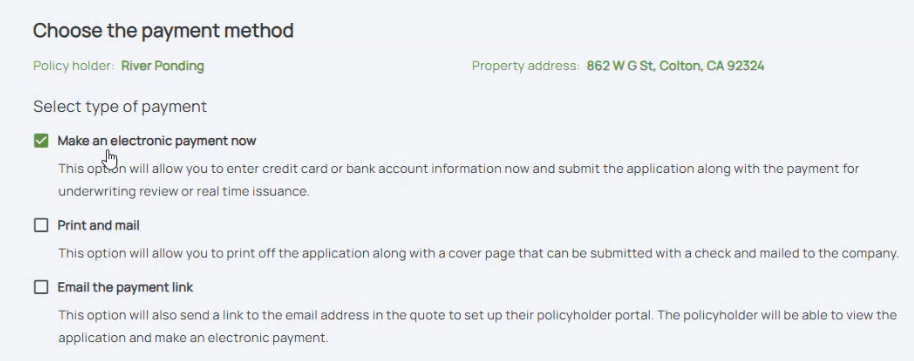
Step 1: Choose Electronic Payment
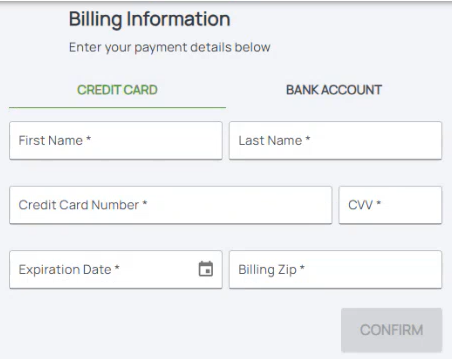
Step 2: Enter Credit Card or Bank Account
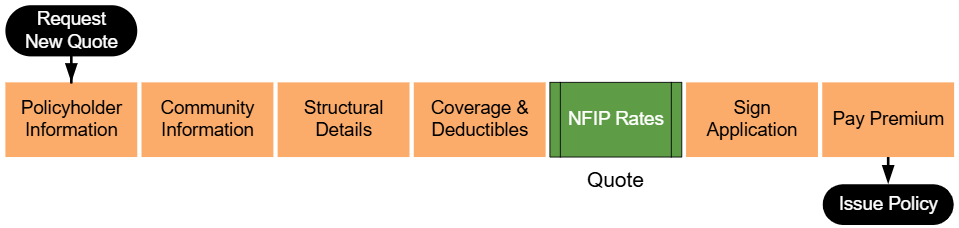
The workflow shown above begins by entering basic property details and continues through collecting additional information about the building, coverage options, and flood zone determinations. At the "NFIP Rates" step, highlighted in green, agents can generate a preliminary quote based on the details provided. This allows the agent to review potential costs before signing the application and collecting premium.