

Submit Change to Effective Date


This procedure explains how agents can submit requests to correct the NFIP policy effective date. Supporting documentation may be required.
|
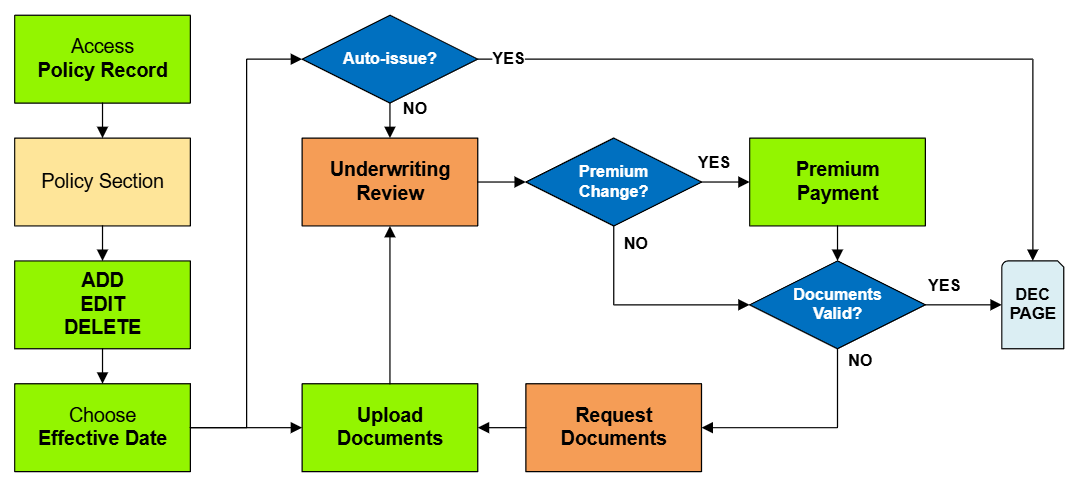
Procedural Steps
1. Access Policy Record

To quickly navigate to the Coverages and Deductibles section:
- Find the Policy Actions block on the right
- Choose Policy Changes
- From the next menu, click the Coverages and Deductibles option
2. Edit Risk Characteristics

This will open all NFIP structural variable fields for editing.

These fields describe the physical details of the building, which can be changed over time due to reconstruction or disrepair.
- Building characteristics should be accurately represented on an NFIP policy.
- They can be corrected if they are not.
- The collapsed table below shows a sortable list of all fields.
Required Documentation: Changes: proof of a change to the building, such as a photograph.
Required Documentation: Corrections: an agent statement that the item was incorrect on the original application.
Corrections: the effective date is the policy inception date.
| Structural Variable | FIM | Details |
|---|---|---|
| Occupancy | FIM | The building's intended use chosen from one of nine options. Determines the NFIP Policy Form and maximum coverage limits. |
| Building Description | FIM | Used to specify more detail about the building's intended use or to differentiate it from other buildings at the same location. |
| Primary Residence | FIM | Where the insured, their spouse, or a beneficiary of an insured trust resides more than 50% of the year. Determines the HFIAA surcharge amount. |
| Foundation Type | FIM | The portion of the building that supports all other structural components, chosen from six different types. |
| Foundation Description | FIM | Additional defining characteristics about the foundation |
| Number of Floors | FIM | The number of living floors above the foundation. Enclosures, crawlspaces, and basements are not considered a floor. |
| Number of Units | FIM | The number of units in a multi-unit building, including residential and non-residential units. |
| Floor of Unit | FIM | (Unit occupancy only) The floor of the building where the unit is located, even if only a single story building. |
| Building Over Water | FIM | Describes whether the building is either partially, fully, or not over water. |
| Detached Structures | FIM | Identifies the number of detached structures, not including the main building |
| Number of Elevators | FIM | The total number of elevators in the building. Does not include dumbwaiters or stair lifts. |
3. Choose Effective Date

Scroll to the top of the page to enter the effective date.
- Choose "None" from the Waiting Period dropdown box.
- Determine and enter the appropriate date based on whether this is changing a building detail or correcting it.
4. Review and Submit
Once the effective date is entered, a pro-rated premium amount might be displayed.
- The "Abort" button will exit the process without saving any details.
- The "Submit" button will create the policy change form and mark the policy with a "Pending Change" (and "Pending Payment") flag.

The system will not process the change immediately.
Policy changes to NFIP Structural Variables require underwriter review.

The Policy Record will show a Pending Payment (and perhaps a Pending Change) flag.

The policy in the Agency Workspace will show a Pending Payment (and perhaps a Pending Change) flag.

