Print the application packet; payment will be mailed to the address provided
Email the payment link
Forward an email link to the policyholder to make payment using the Consumer Portal
Clicking the "Continue" button will create a new policy, as shown in Step 3 below.
3. Follow-up
The type of follow-up needed will be dependent on payment method. Click the appropriate box below for more details.
Immediate Payment, Auto-issued
After the premium payment is submitted using Equinox, the policy may auto-issue. This requires no underwriting review.
Immediate Payment, Underwriting
After the premium payment is submitted using Equinox, the policy may require underwriting review.
The policy can be found in the Pending Transactions queue with a "Pending New Business" flag.
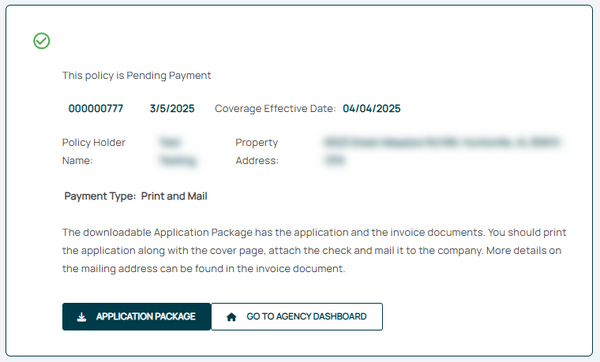
Equinox Options After "Print and Mail"
Use this page to download a copy of the Application Package to your device by clicking the button
The policy can be found in the Pending Transactions queue with a "Pending Payment" flag.
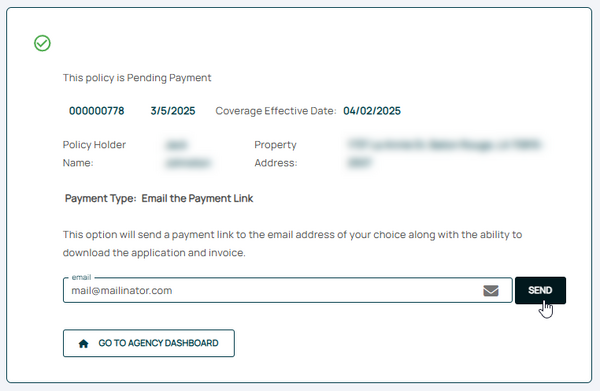
Equinox Options After "Email the Payment Link"
Use this page to email a link to the payment page of the Consumer Portal.
The recipient has the option to download the Application Package.
The policy can be found in the Pending Transactions queue with a "Pending Payment" flag.
Making Payment to Policies Pending Payment
A policy in the Pending Transactions queue with a "Pending Payment" flag can be paid directly using Equinox.
Open the Policy Record.
The policy will have a status flag showing "Pending Payment".
Click the "Make Electronic Payment" option under Policy Actions to submit premium payment.
The Billing and Payment screen also shows a "Pending" status in the Invoices section.
Click the Make a Payment button to submit premium payment.
This page contains details about NFIP New Business.
Find more in the How To Write section of the NFIP Flood Insurance Manual.